Managing Contracts
This page will provide information and instructions for managing contracts in Site Specs.
Overview
Contracts can be viewed on a company level allowing executives, compliance officers, legal, and risk management to have a global view of all contracts being issued by your project teams. Contracts can also be sent, viewed, and managed on a project level by individual project teams. Both company and project level offer different benefits and reporting capabilities. Below we will discuss the various methods for viewing and managing your company's contracts.
Steps
We will break down contract management into Company and project levels
Viewing contracts in a project
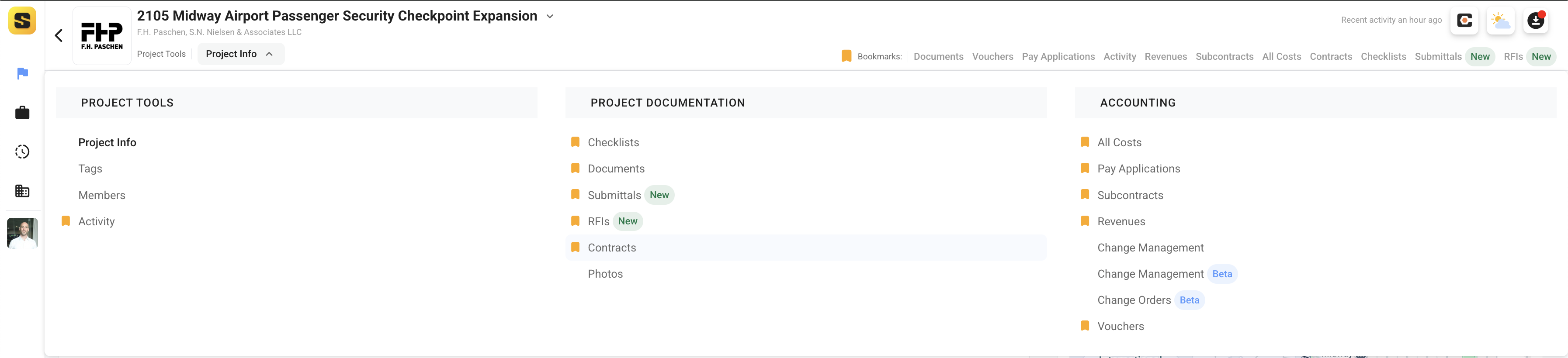
Project teams can manage their project's contracts in the project Contracts tab and user's can navigate there by selecting 'Contracts' in the project navigation menu shown below.
On the Contracts page within the project, users will see a log of the project contracts.
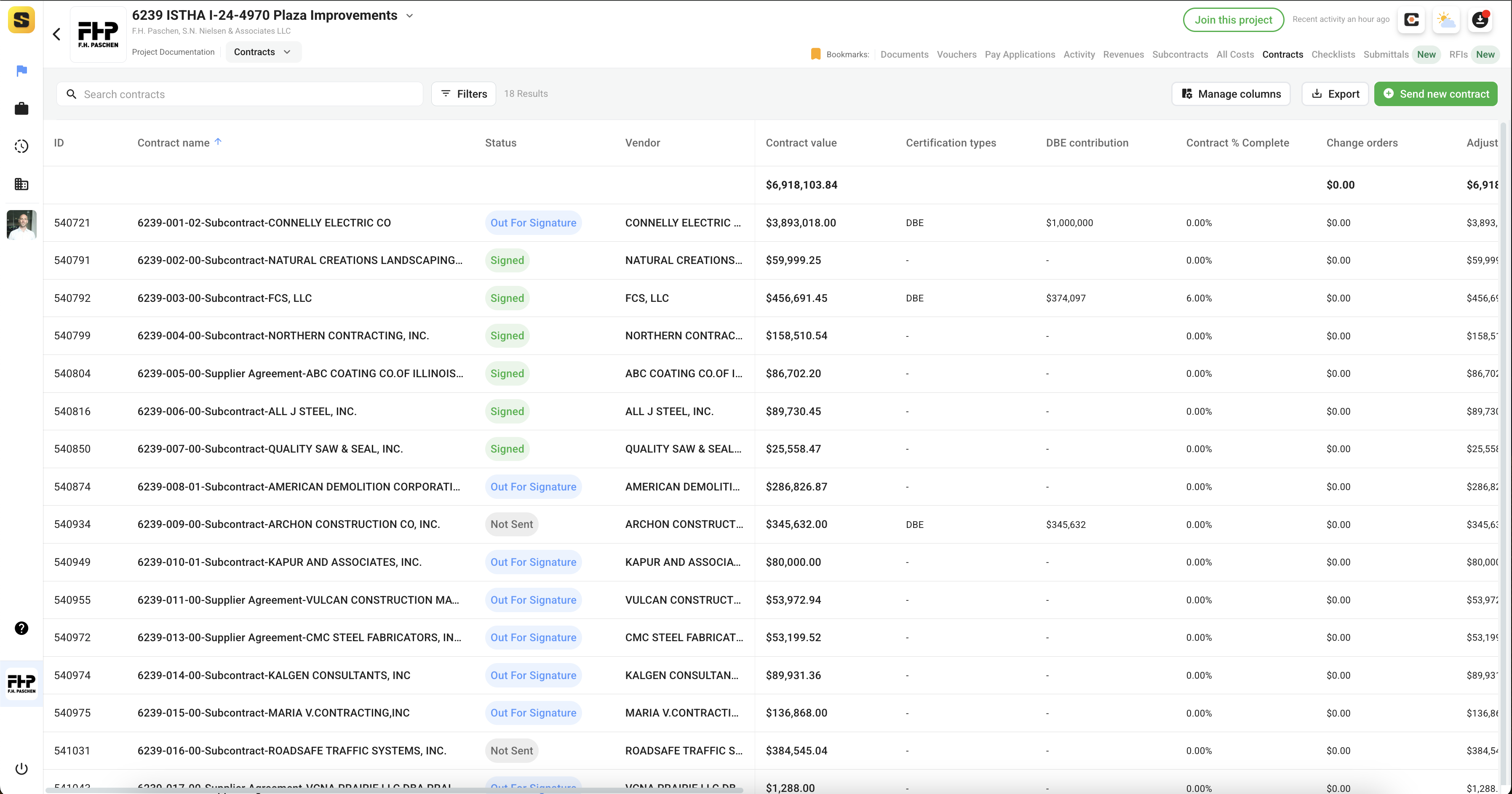
This log defaults to show only thee 'Master' version of each vendor's contract agreement. 'Master' contracts are the contract agreement revision that established the 'Base Contract' for a vendor on a project.
Meaning, if many revisions of a subcontract were uploaded or generated for the same vendor, Site Specs will only display the master version (typically the latest signed revision). Site Specs then organizes accompanying revisions, change orders, and 'Other' related documents behind the 'Master' contract agreement.
Whenever multiple revisions are sent out for signature, Site Specs does it's best to automatically assign the latest revision as the 'Master'. However, sometimes users mi label contract 'Type' and therefore, Site Specs mislabels the 'Master' version.
Users can view ALL prior revisions of contracts by clicking on and vendor's contract in the Contract Log in the project. See the below example of a subcontract with 2 prior revisions.
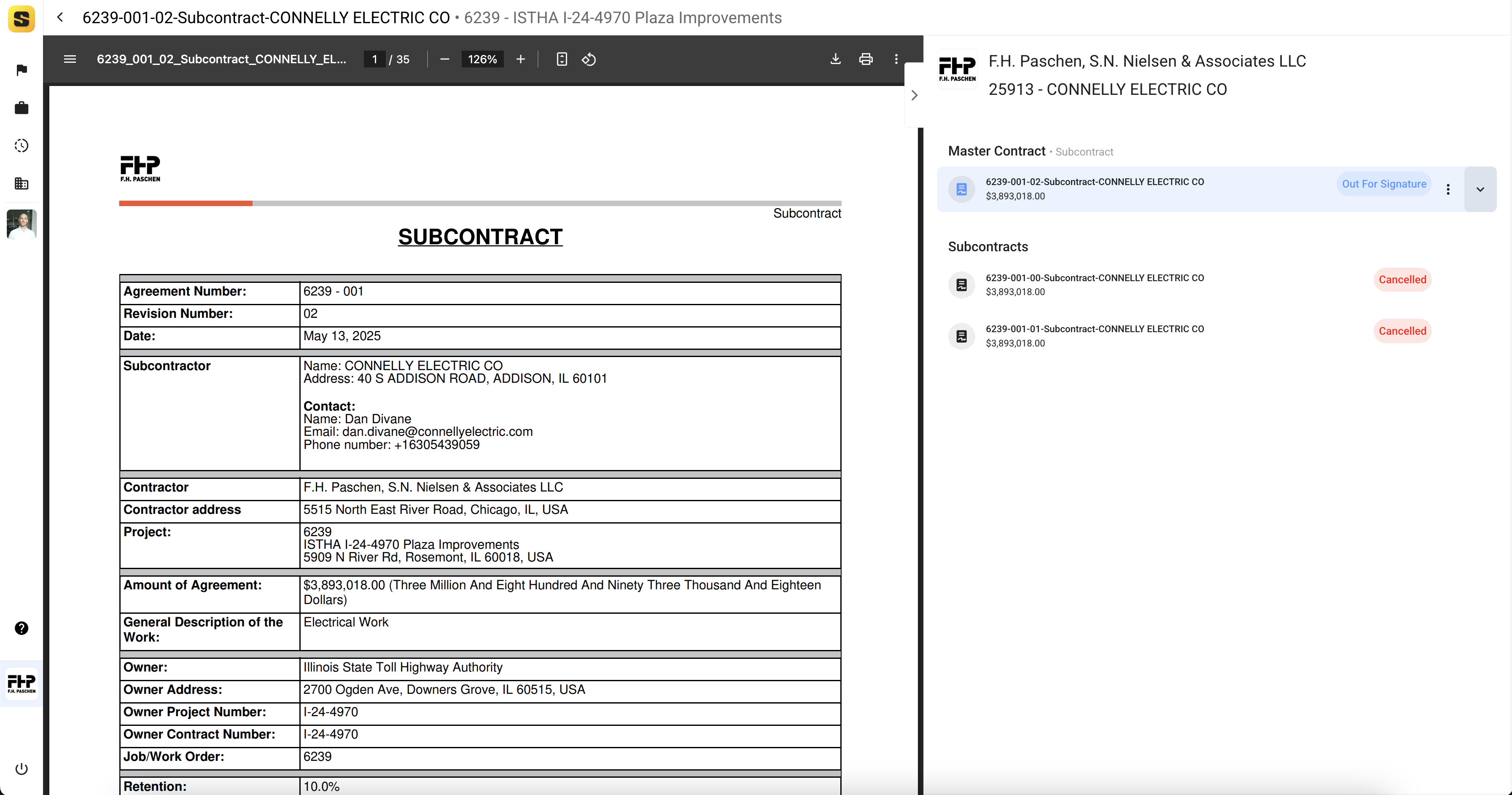
Companies will typically have their own contract numbering system to help them track which revision each contract is. For contract generated using Site Specs' contract templates, you can visit Naming to see detailed explanation on Site Specs contract naming methods as shown in the contract example above.
Users can click on each of the contract revisions to view each document if needed. Users can also click the down-arrow besides each revision in order to view the complete contract revision history thru execution.
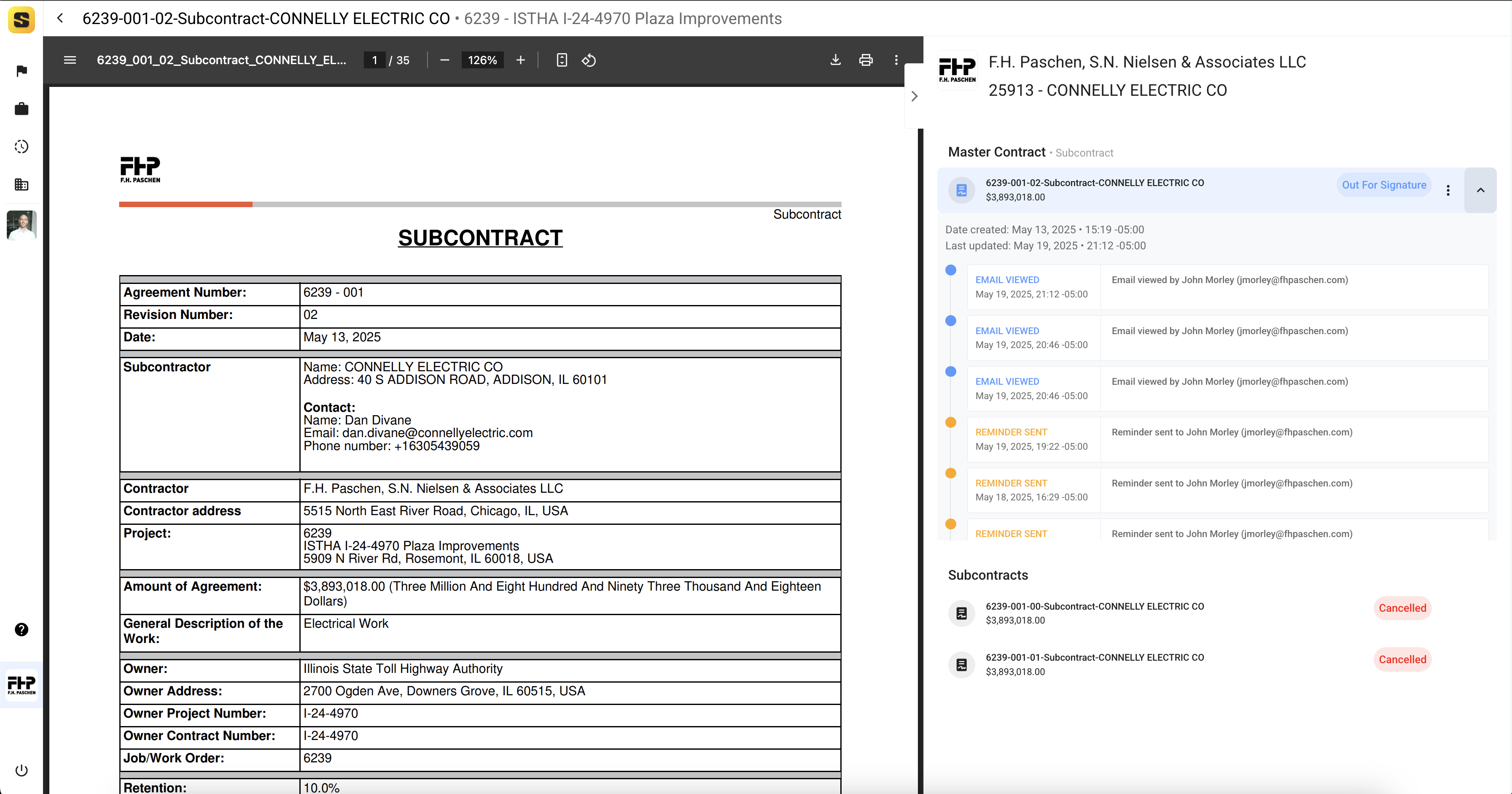
If you notice that the incorrect revision is marked as 'Master' version, you can click the options menu (three dots button) to show a list of contract menu options.
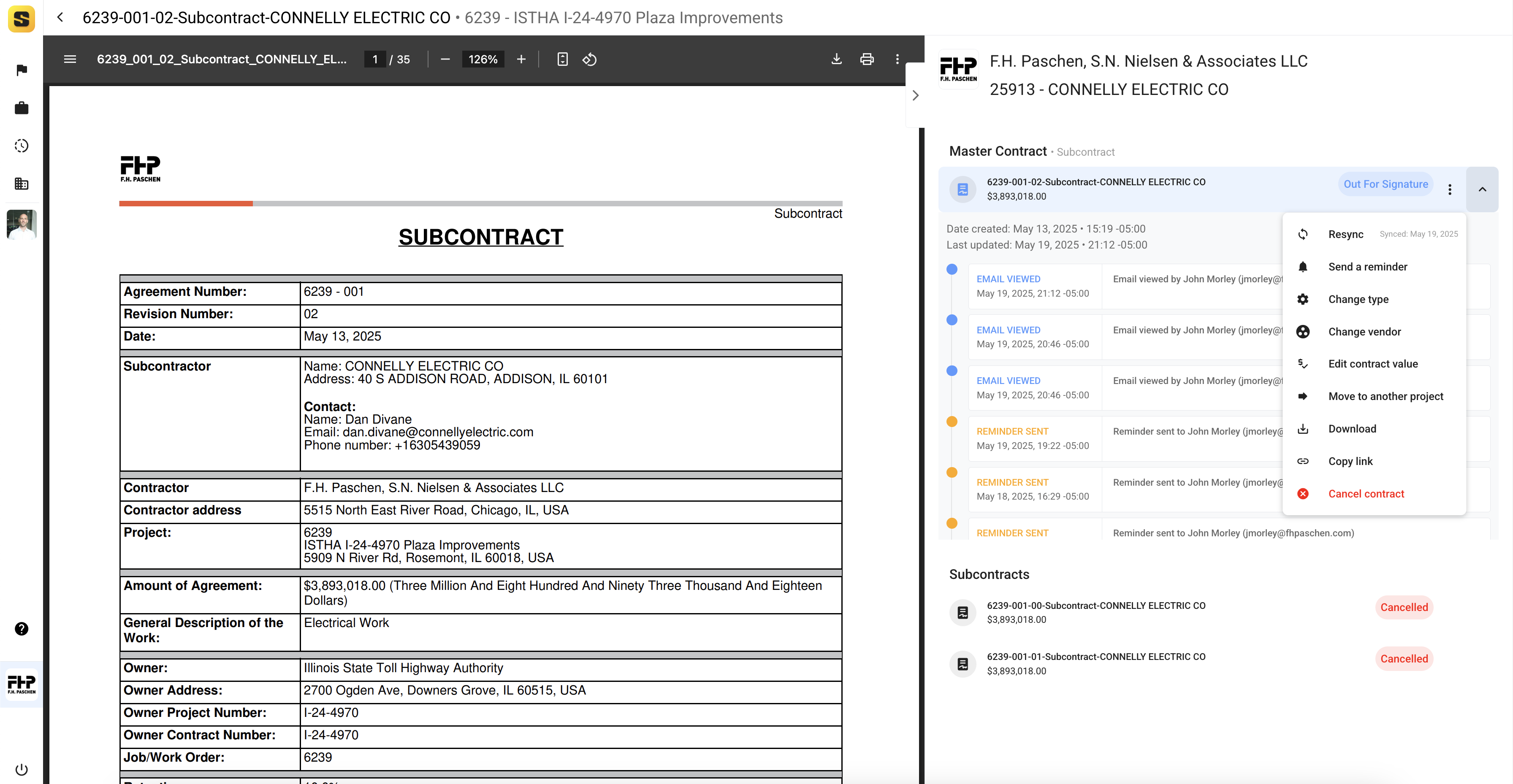
Contract Menu Options
- Resync - Resyncs the contract with Adobe Sign (if your company utilizes an Adobe Sign API).
- Send a Reminder - This is an option for contracts in 'Out for Signature' statuses and sends a reminder to the person whose ball-in-court it is to review (sign/approve) the contract via Adobe Sign API.
- Change Type - Changes the agreement 'Type' if a user mis-categorized the type while sending the contract using 'Upload Custom File' method. See Sending Custom File Contracts for more info.
- Change Vendor - Reassigns the contract to a different vendor profile. This is applicable if a user incorrectly assigned a contract to the incorrect vendor while sending out the contract.
NOTE: Changing vendor does NOT change the language in the contract document and does NOT update the contract PDF. In order to change the words on the actual contract, users need to CANCEL the contract and reissue with whatever contract generation method they used to correct those types of issues.
- Edit Contract Value - Edits the contract value associated with this specific contract agreement revision.
NOTE: This value should in theory always match the cover page on the contract document. Change Orders contract value should be the value of the change itself, NOT the revised total contract value.
- Move to Another Project - This option should be used if contract was uploaded and sent on the incorrect project.
- Download - Downloads the PDF file to your computer.
- Copy Link - Copies the URL to this specific PDF file in Site Specs so you can share via email/text.
- Cancel Contract - Cancels the contract in Adobe Sign and stops the signature workflow. The contract status will change to 'Cancelled'.
Back to the project Contract Log, you will see a search bar and filters button you can use to search and filter your projects' contract lists.
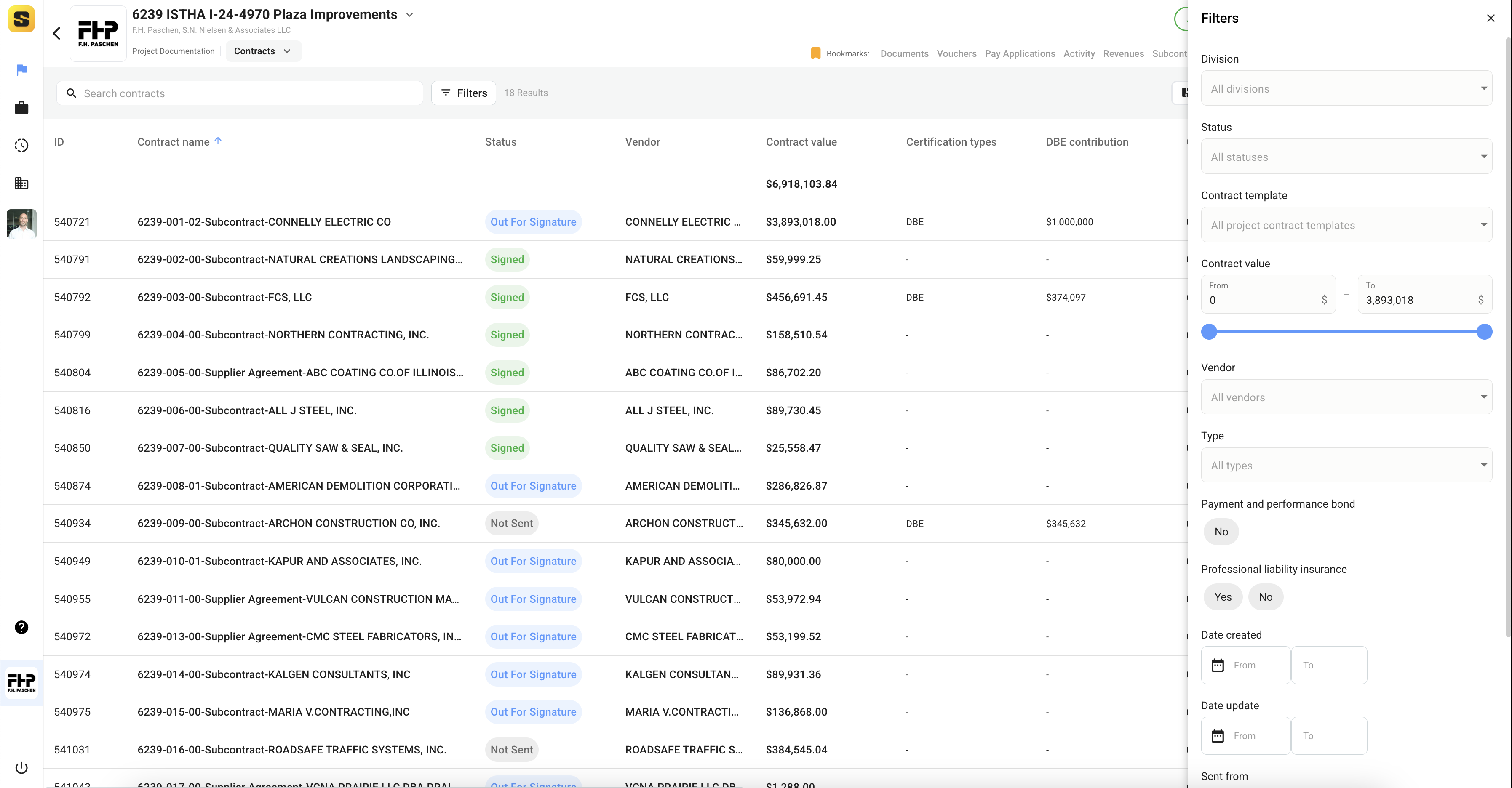
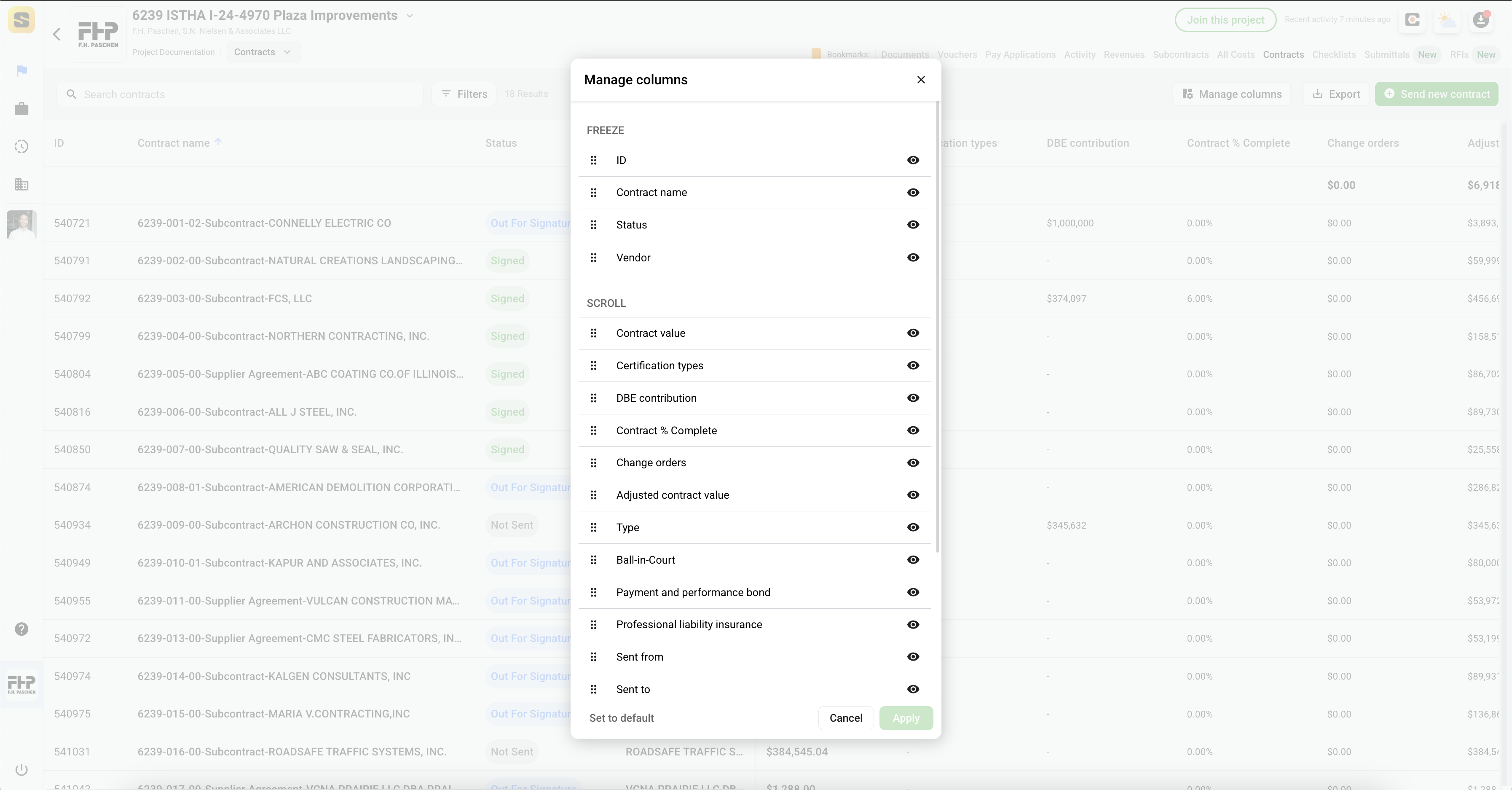
Users can also click the 'Manage Columns' option to customize their projects contract log. User's column settings are personal to themselves and do not impact other user's views.
Users can export the contract log by clicking the 'Export' button. This will email them a csv/excel file with the same columns and filters they have in place at the time of the export.

Additionally, users can opt to setup a recurring export of the projects contract log. This feature is often useful for users who need to generate regular reports of the project's contract statuses for update meetings.
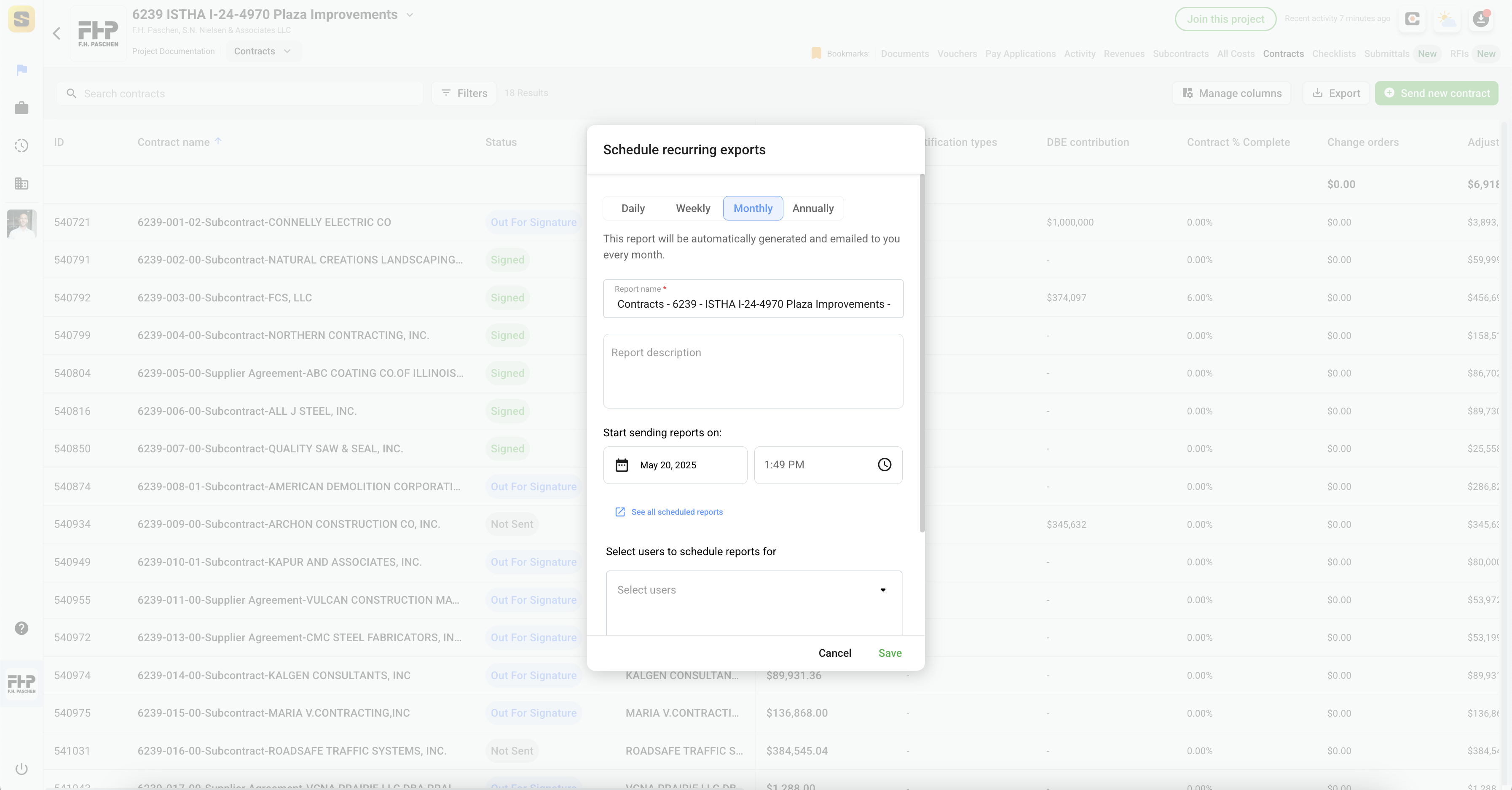
Viewing Contracts at the Company Level
Users with permission can view their company's contracts at the company level which is very useful for risk managers, legal departments, executive teams, senior management and office managers.
Viewing ALL Company Contracts
Users with permission to view all company contracts can navigate to the My Company page using the left navigation menu bar on the website.
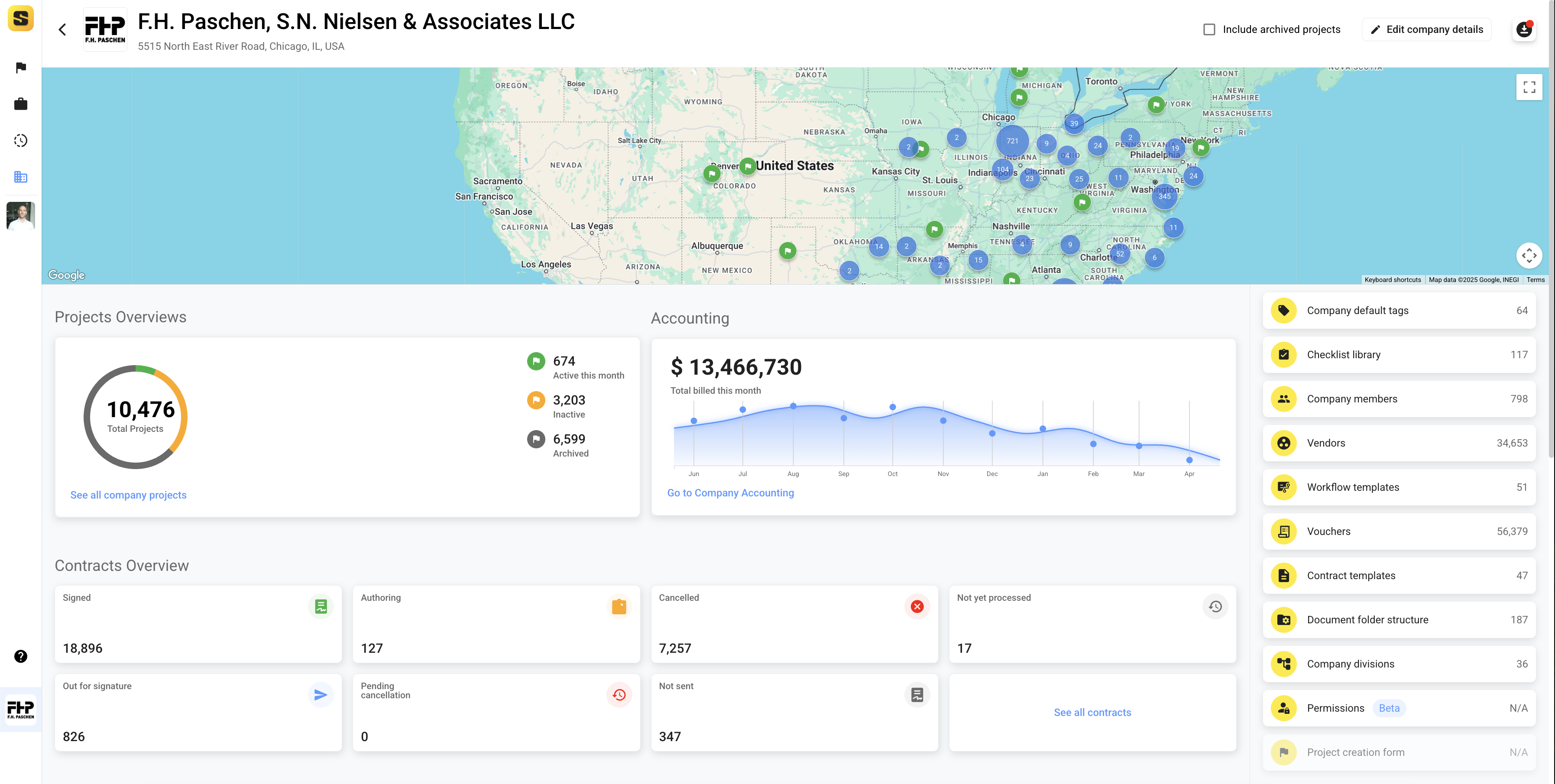
On the My Company page users will see the Contracts section of the company dashboard. here users can see a breakdown of contracts by status across their entire organization. You can click on a specific status to filter to contracts with that status, or click on 'See all contracts' to view the company contract log showing ALL company contracts.
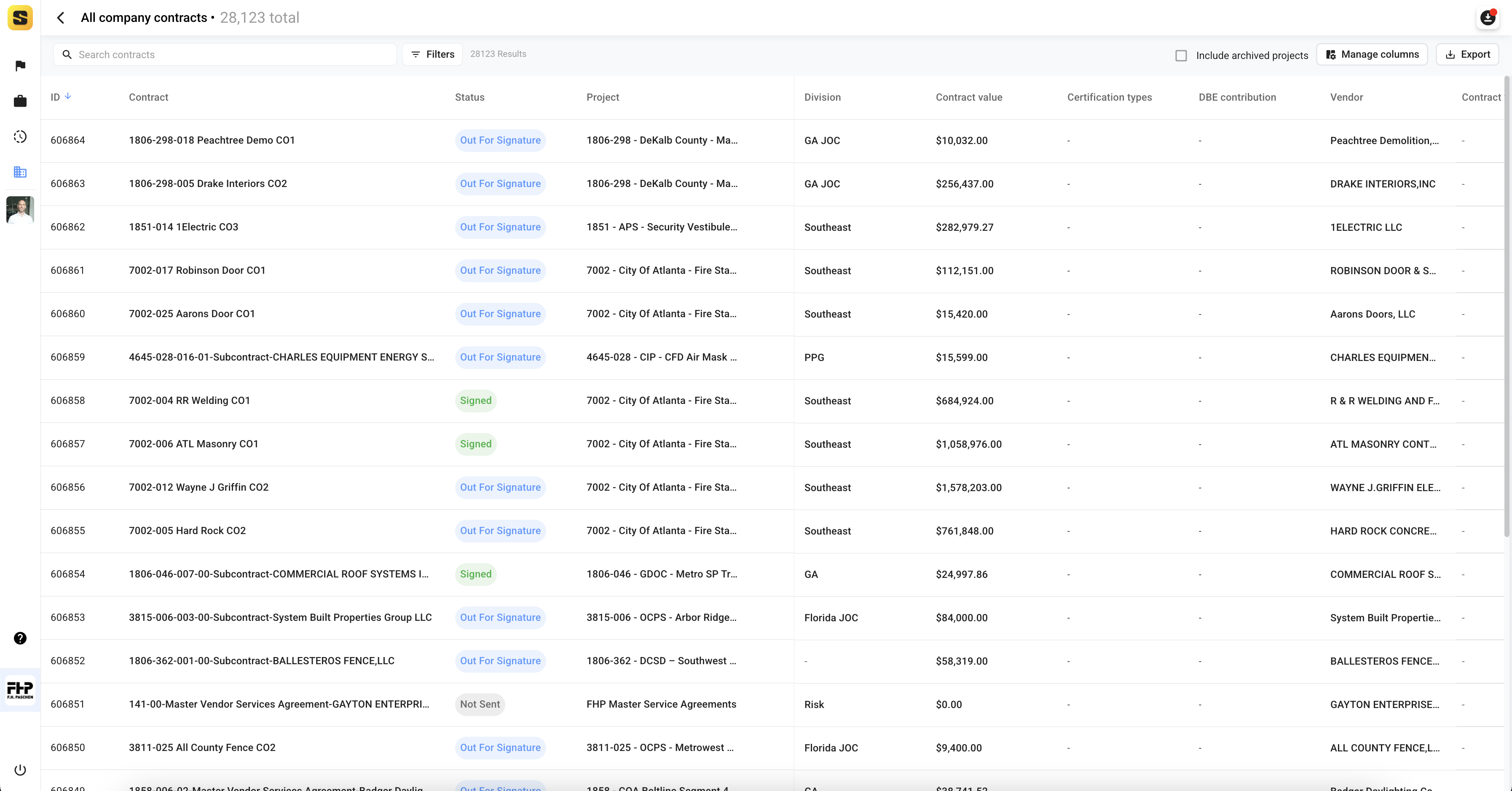
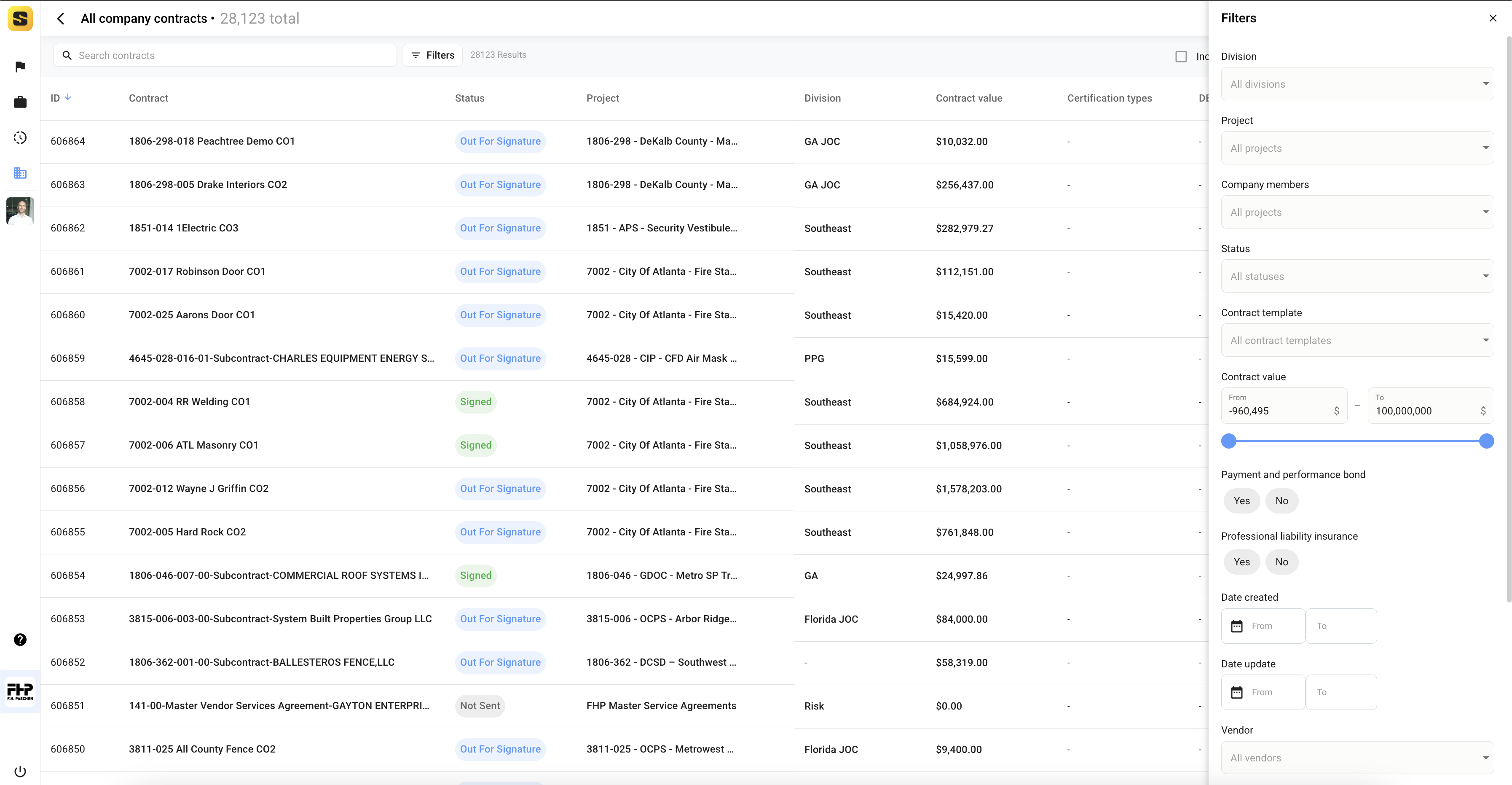
from this view users can search vendors using the search bar or filter all contracts using the 'Filters' button.
This list of contracts by default will only show contracts on your company's 'Active' projects. If you need to search all company contracts including 'Archived' projects, you can click the 'include archived projects' option to the right of the search bar in widen your search.
Users can manage and customize their My Company Contracts table by clicking the 'Manage Columns' button to rearrange, or hide columns of data as needed. Editing this list will only impact your view, not other company members.
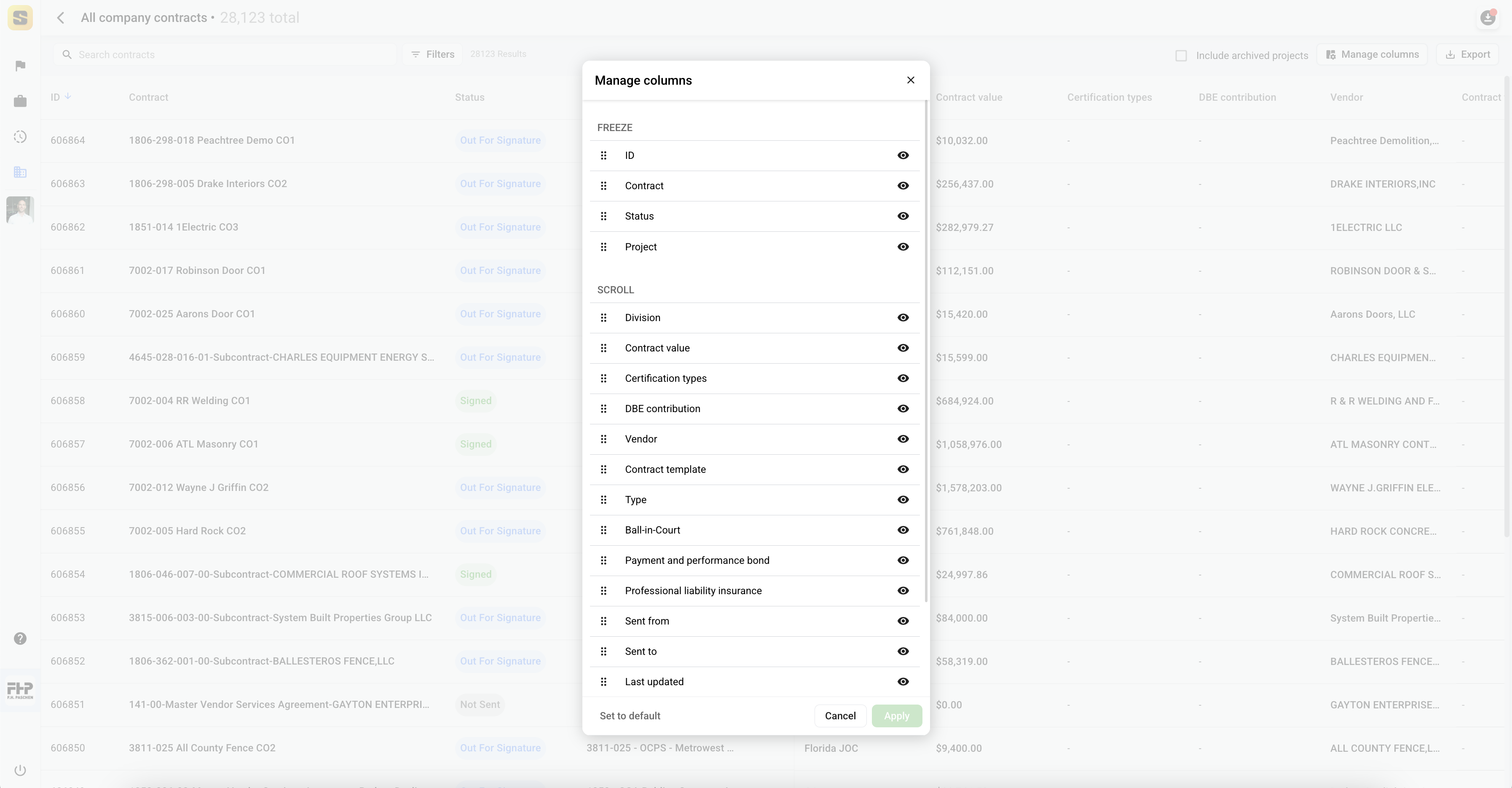
Users can export the table to csv/excel by clicking the 'Export' button. The export will have the filters and column settings you have in place at the time of export. The export file will be emailed to your email address linked to you Site Specs account.

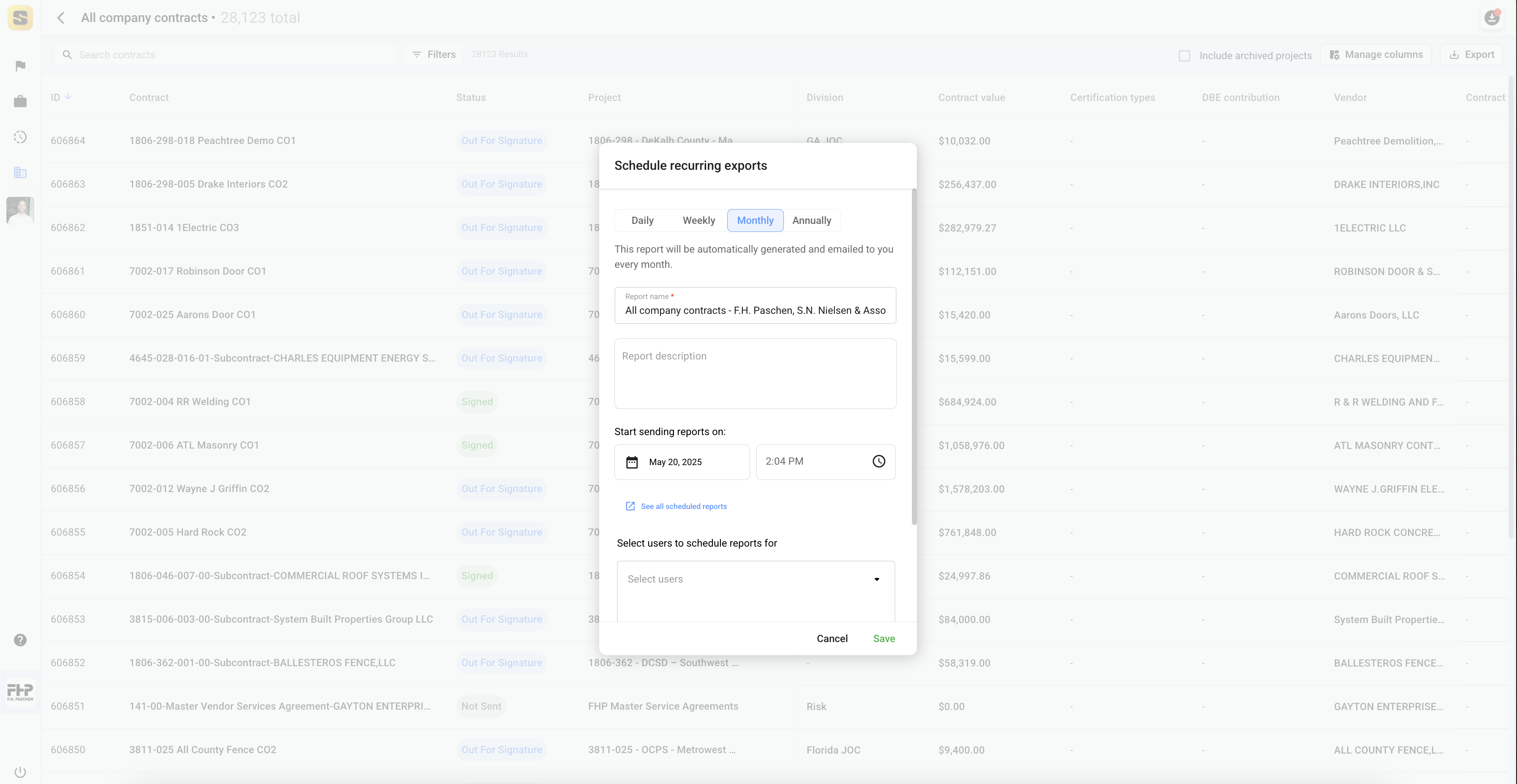
Users can also schedule recurring exports that are scheduled daily/weekly/monthly.
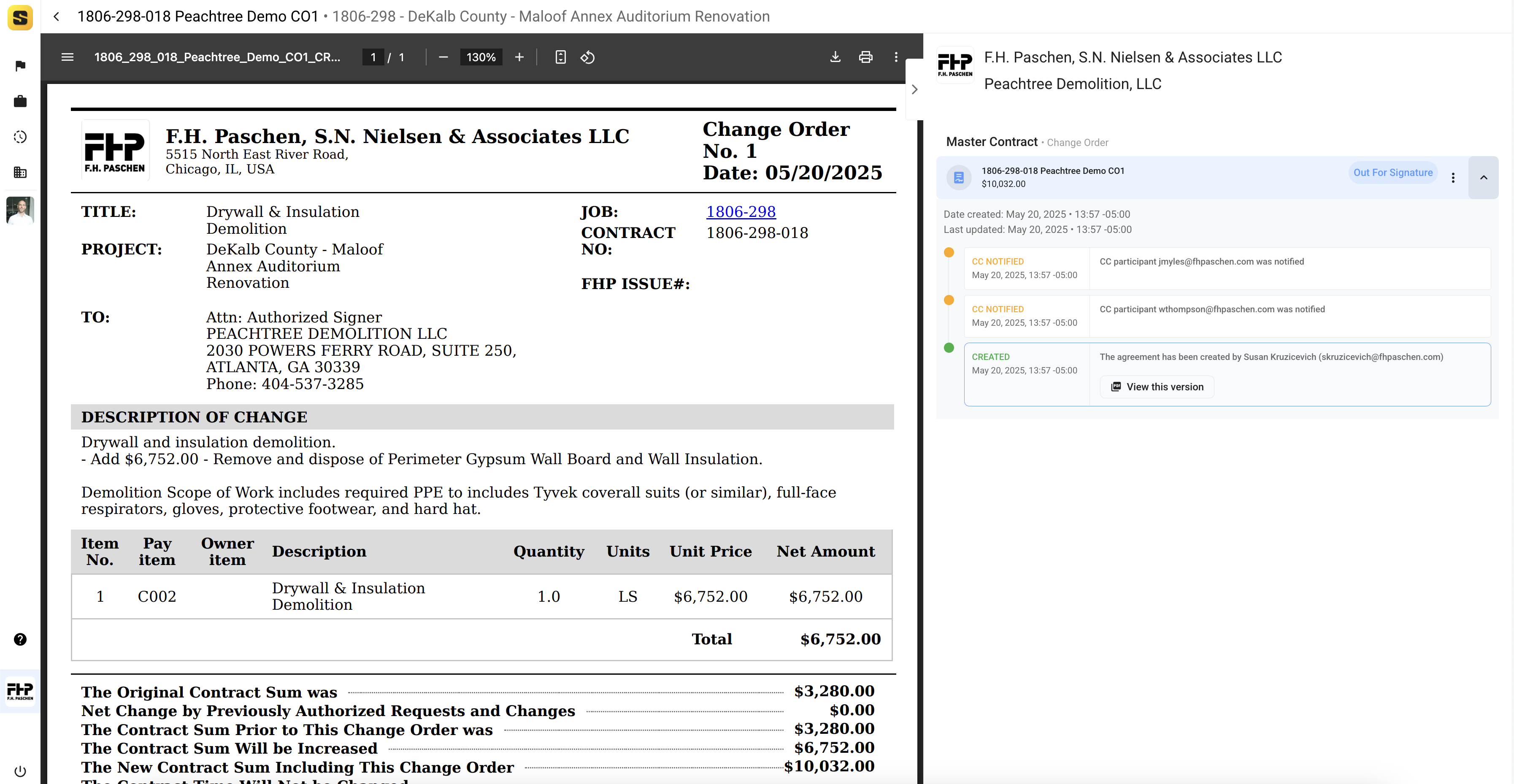
Click on any contract in this view to open the contract's details view where users can see the contract revision history and history of the contract execution.
Click the 'Options' menu (three dots) to see available options with each contract revision.
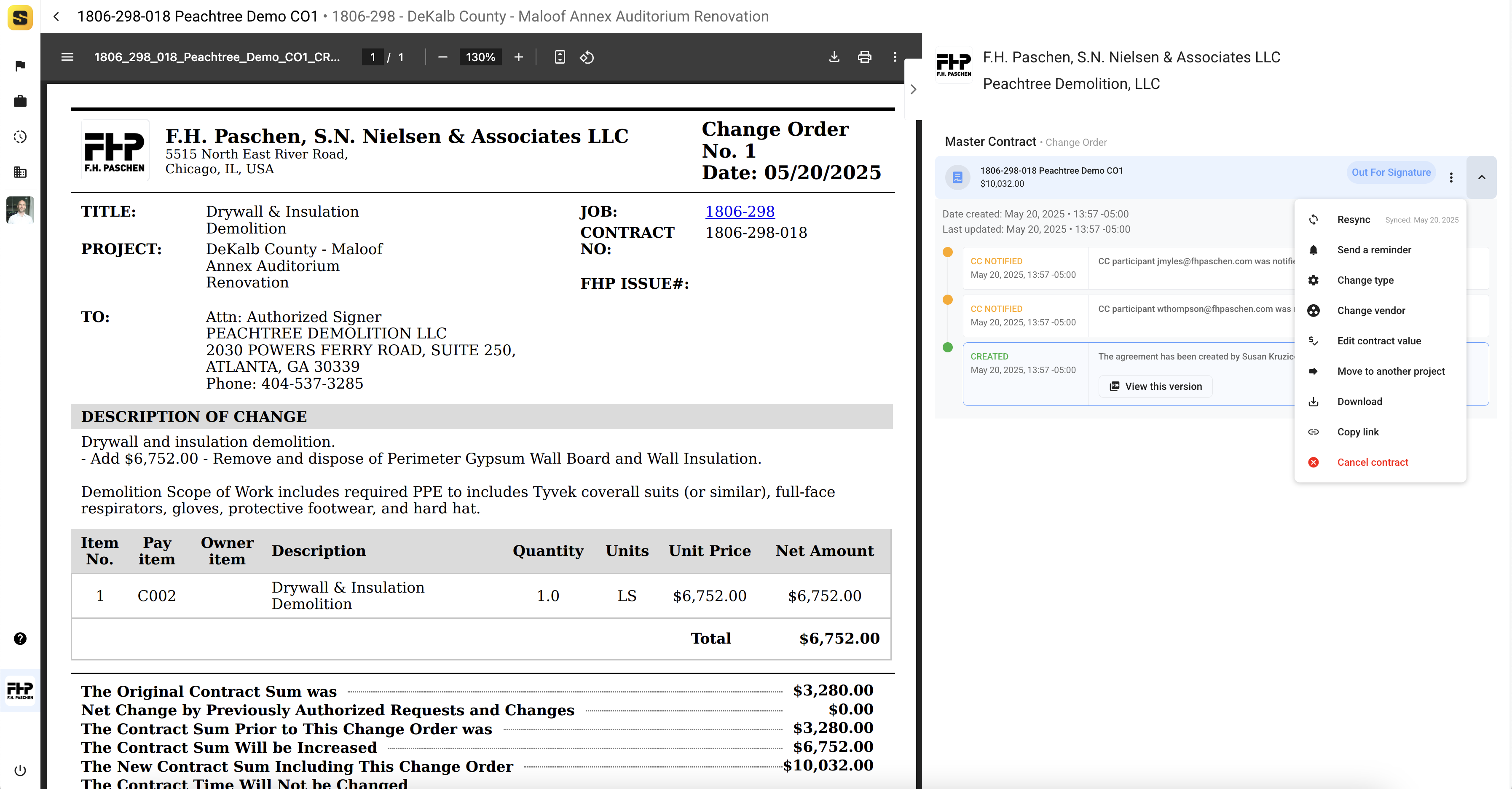
Options vary depending on the contract status and source.
Viewing Contracts via Vendor Profiles
Users also have the option of viewing vendor contracts within each vendor's profile. To do this, navigate to the My Company page and click on 'Vendors' on the right settings list.
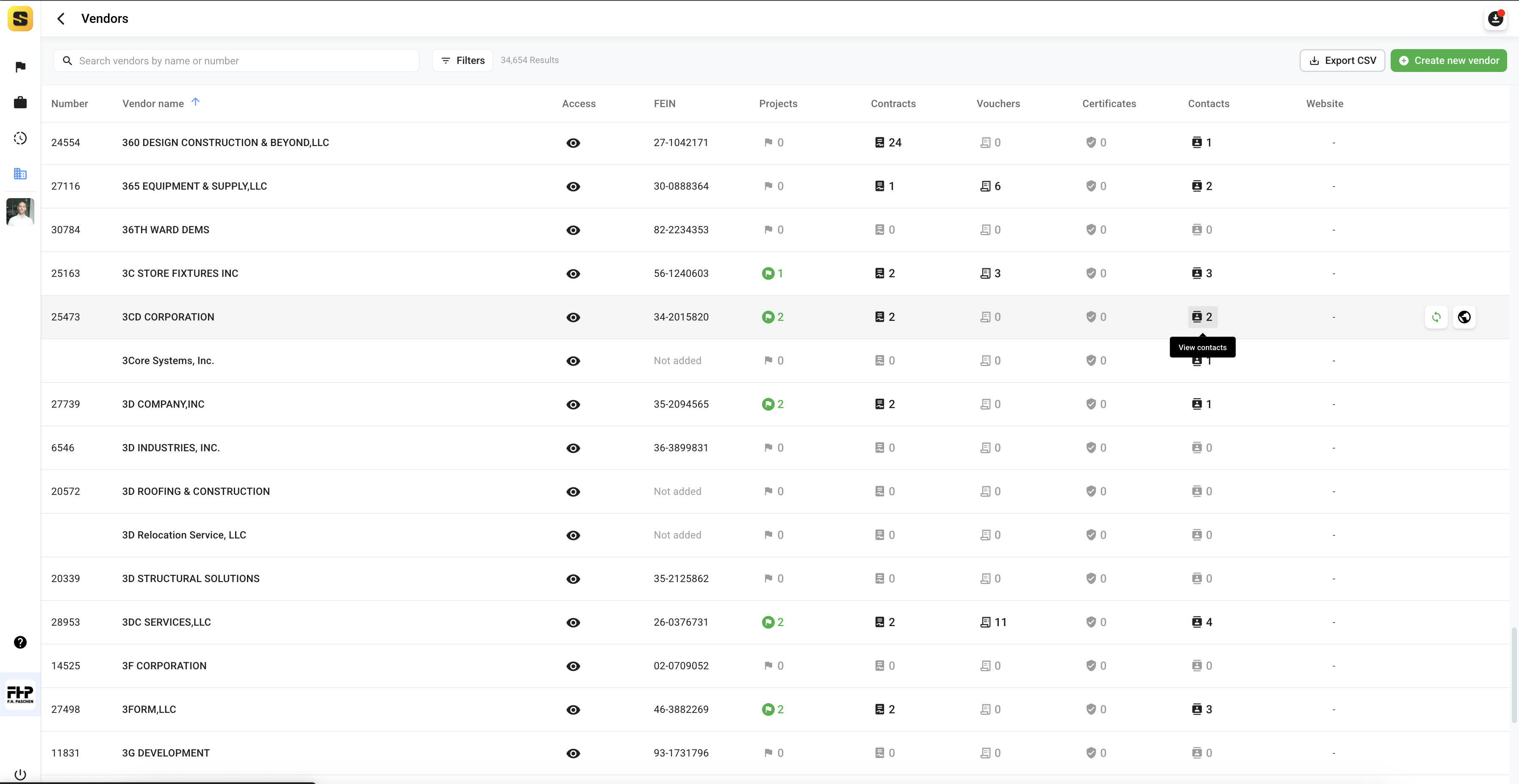
Click on the contract count in the 'Contracts' column in the vendor list for a quick link to the vendors contracts within their vendor profile
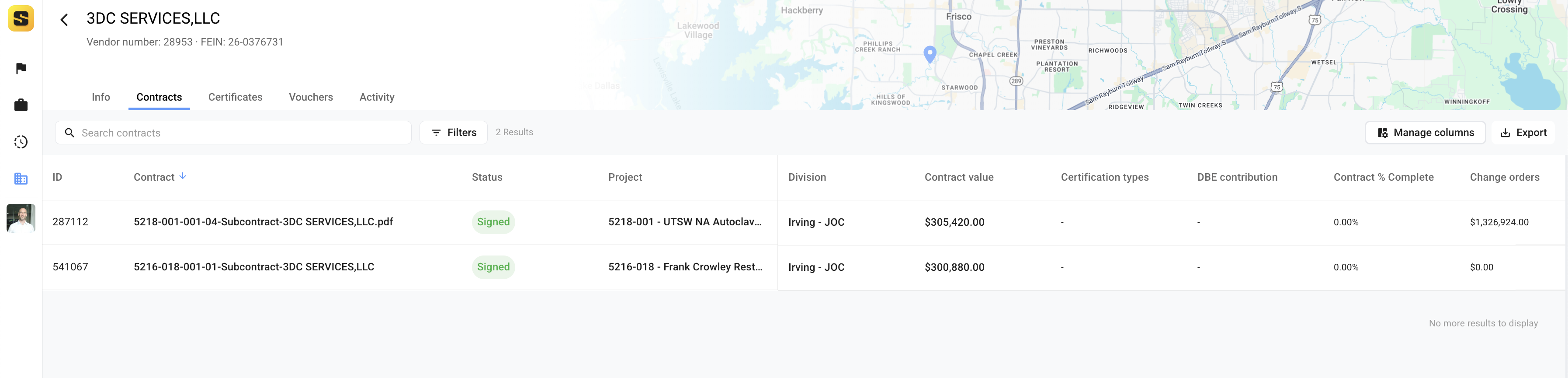
The Contracts tab within each Vendor profile is a filtered list of all the contract agreements you have with that vendor across all your projects. This is a quick way to see how exposed your company is to a specific vendor, reference what projects you have them contracted on, and more.
Viewing Contracts via Contract Template Library
Lastly, users can view all the contracts issued from each of their contract templates by navigating to the My Company -> Contract Templates page.
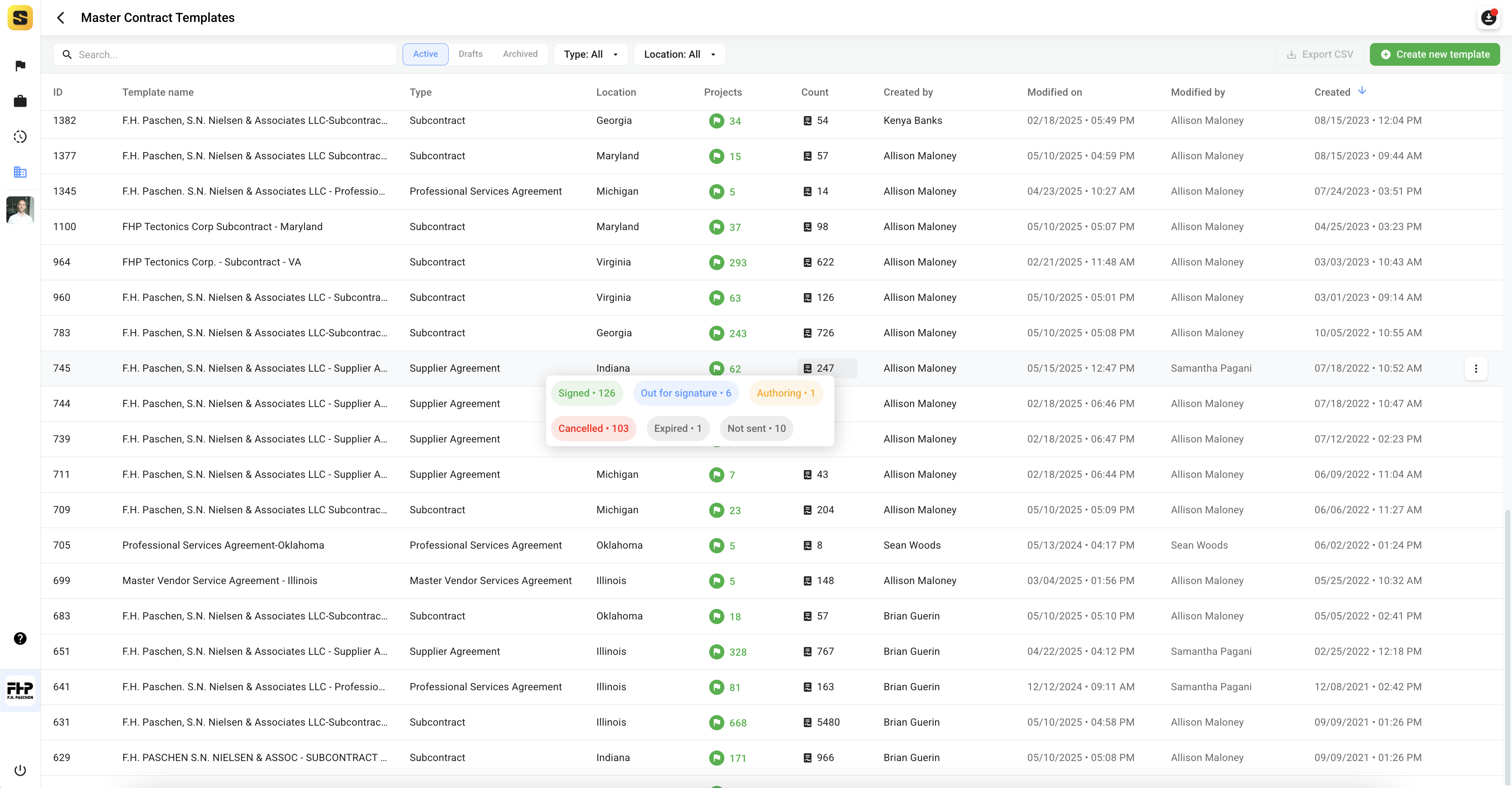
Click on the 'Count' of any contract template to view all the contracts sent from that contract template. This is a great tool for legal and risk management to assess how contract templates are being utilized, audit the project teams' use and assess exposure to any contract verbiage.
Things to Consider
Site Specs relational databases allow users several avenues for accessing important company and project data. Users will find the most effective ways to locate and manage contracts that work for them and their role in their company.
Site Specs has document signature integrations with Adobe Sign. if your company needs help connecting your Adobe Sign account with Site Specs contact support at the address below.
Issues or Questions?
Contact Support at Support@SiteSpecs.io